
External connections
External connections link your Sweescape account to other services: Stripe to collect your sales, Canva to design your invitations, and your sending domains so your emails leave from your own address.
Where to find them
Section titled “Where to find them”Open your account menu, top right, then Settings. The External connection card is the last one on the page. It has three rows: Stripe, Canva and Custom Mail Domains.
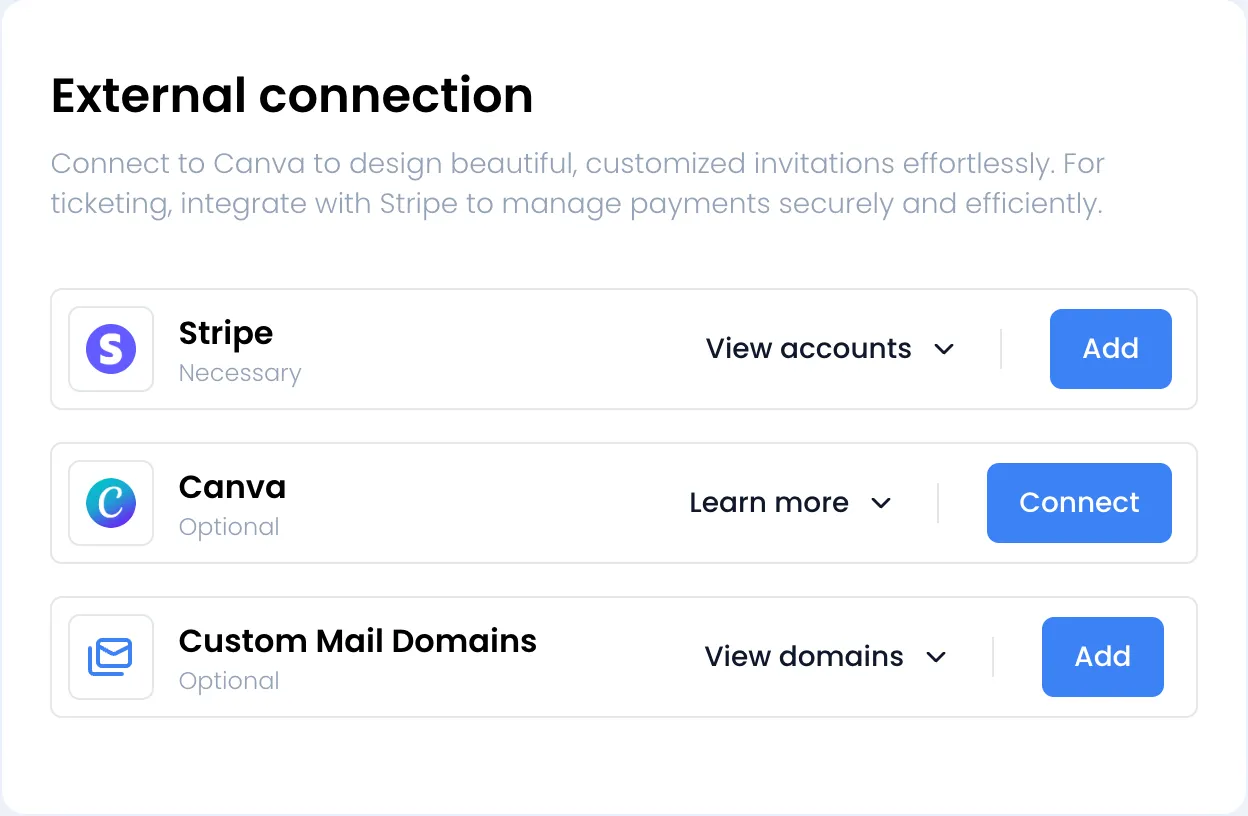
The label under each name tells you whether the connection is Necessary or Optional. Learn more expands a short explanation.
Stripe
Section titled “Stripe”Stripe is Necessary to sell tickets: without a ready Stripe account, you cannot create an event with ticketing. This is also where you complete your company’s billing details.
The whole procedure is described in Connect Stripe.
Canva is Optional. Once connected, you can create and edit the design of your invitations in Canva, from the Invitation tab of your events.
-
On the Canva row, click Connect. You are redirected to Canva.
-
Log in to Canva and allow the access requested by Sweescape.
-
Canva sends you back to Settings. The row now shows Disconnect to Canva.
-
Open an event, Invitation tab: the Edit with Canva button of the Invitation design card is now enabled.
The Canva connection is saved in this browser, not in your account. On another computer or another browser, or if the connection has expired, connect again. As long as Canva is not connected, the Invitation tab shows the Do you want to use Canva? link, which brings you back here.
To cut the connection, click Disconnect to Canva. The page reloads.
If the message The code has expired, please retry! or The code is invalid, please retry! appears when you come back from Canva, click Connect again.
Custom Mail Domains
Section titled “Custom Mail Domains”A sending domain lets you send your invitations and campaigns from your own address, for example [email protected], rather than from a Sweescape address.
This row requires the Advanced Plan (one sending domain) or the Agency Plan (up to five). Without one of them, the row shows Upgrade your plan, which opens the plan grid. With one, the row shows View domains and Add.
Adding a domain and setting it up with your domain provider are described in Sending domain.
What about your own ticketing domain?
Section titled “What about your own ticketing domain?”The domain your ticketing page is shown on, for example tickets.subsol.fr, is not set here. You set it up event by event, in the Ticket tab, Your own domain card.
See Your own domain.