
Send the invitation by SMS
The invitation SMS is a short message followed by a link to the attendee’s invitation page. On that page, they open and download their PDF ticket, and can add it to their wallet. Each SMS sent uses one SMS credit.
What you need before sending
Section titled “What you need before sending”- Phone numbers in a required field. For a ticketed event, add a required custom field for the phone number to the checkout form: see Choose the information asked of attendees. For an imported event, you need a required column holding the numbers.
- The PDF ticket ready and saved: see Design the PDF ticket.
- Enough SMS credits.
The SMS is never sent automatically after a purchase: you always send it manually.
Set up the SMS
Section titled “Set up the SMS”-
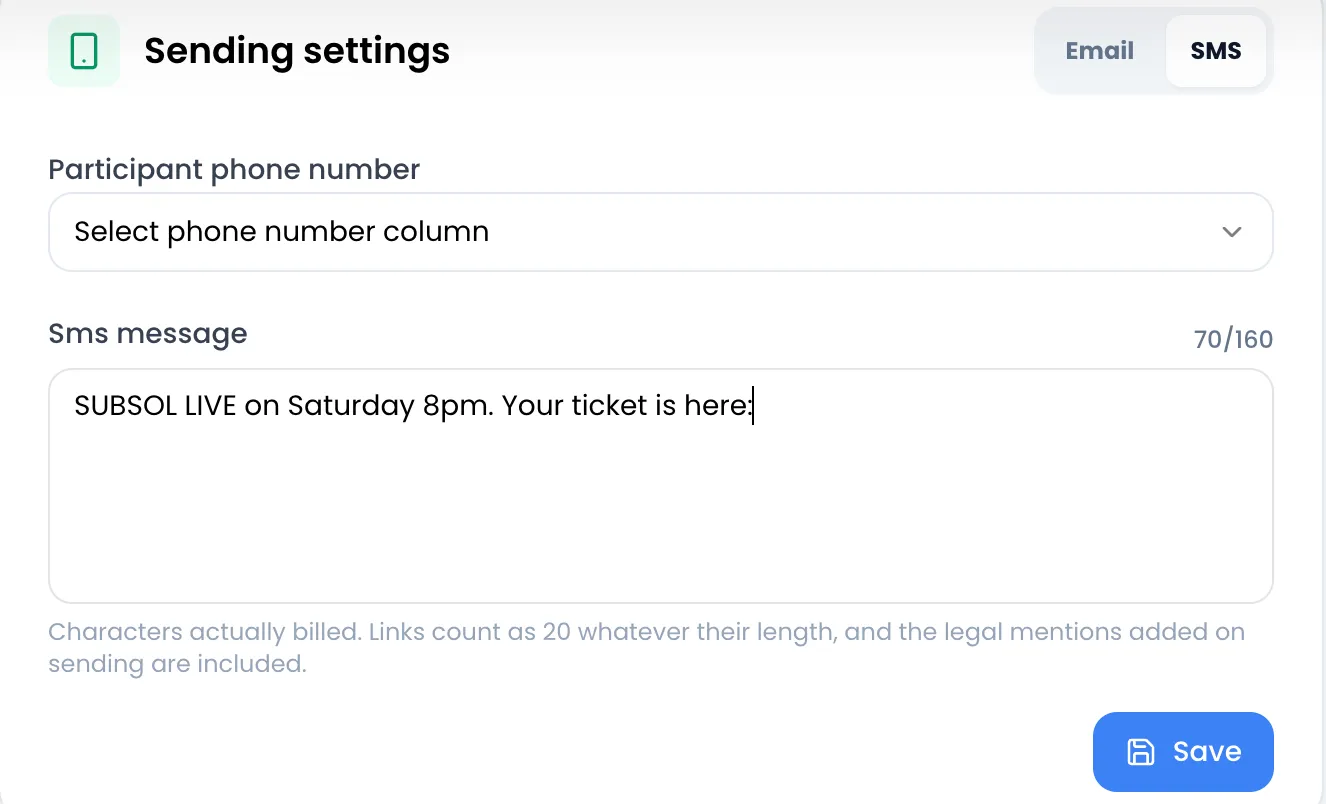
Open your event, Invitation tab. In the Sending settings card, choose SMS with the switch in the top right corner.
-
In Participant phone number, choose the field that holds the numbers. Only required fields are listed.
-
In Sms message, write your message. The link to the invitation page is added automatically at the end: do not type it.
-
Click Save. The message “Invitation settings saved successfully!” appears and the Send button shows up.
Length and allowed characters
Section titled “Length and allowed characters”The invitation SMS fits in a single SMS. The counter above the field shows the characters actually billed: it starts at 21 because the link added at the end counts as 20 characters, plus the space before it. When the limit is reached, typing stops with the message “Limit reached: this message is sent as a single SMS, it cannot be longer.”.
When saving, Sweescape applies three more rules. If one of them is not met, the message “Message is invalid!” appears:
- 135 characters maximum, not counting the link added automatically.
- A single line: no line breaks.
- Only characters from the standard SMS alphabet: unaccented letters, digits, common punctuation, é, è, à, ù, É, Ç, ä, ö, ü, ñ, €, £, $.
Among the characters rejected: emojis, lowercase ç, ê, â, î, ô, û, ë, ï, á, í, ó, ú, uppercase À, curly apostrophes and quotes ’ “ ” (use the straight apostrophe ’), « » quotes and the … ellipsis.
Variables (first name, event name…) are not accepted in the invitation SMS: the message is the same for every attendee. If you type one, the message “Variables are not supported here, the recipient would see them as text” appears.
Send the SMS
Section titled “Send the SMS”Send to all your attendees with Send, then Send to all, Not sended or Sended, or to one attendee from the gear icon on their row in the Participants tab, with Send invitation by sms. Details are in Send invitations.
- One credit per SMS sent.
- Before a bulk send, Sweescape checks that you have at least as many credits as recipients. Otherwise, nothing is sent and the message “Insufficient SMS credits. Please add more credits to the account that owns this event” appears.
- Number format: preferably store numbers in international format (+33 6 12 34 56 78, +44 7700 900123). A number without a country code is treated as a French number.
- A number that asked to stop receiving SMS does not receive the invitation.
Buy SMS credits
Section titled “Buy SMS credits”Credits belong to your account and are used for all your SMS: invitations, campaigns and automations. For an event where you are a collaborator, the credits of the event owner’s account are used.
-
Open your account menu in the top right corner, then click SMS Credits. The window title shows your balance: “Your SMS credits :” followed by the number of credits.
-
Under Add SMS credits, type the number of SMS to buy in the field. The right side shows the indicative unit price (“Approx … each (VAT included)”) and the total.
-
Click To proceed with payment. Stripe’s secure payment page opens: pay by card and enter your billing address, and your VAT number if needed.
-
Once the payment is accepted, you return to Sweescape and the credits are added to your balance. If it has not changed yet, reload the page a few moments later.
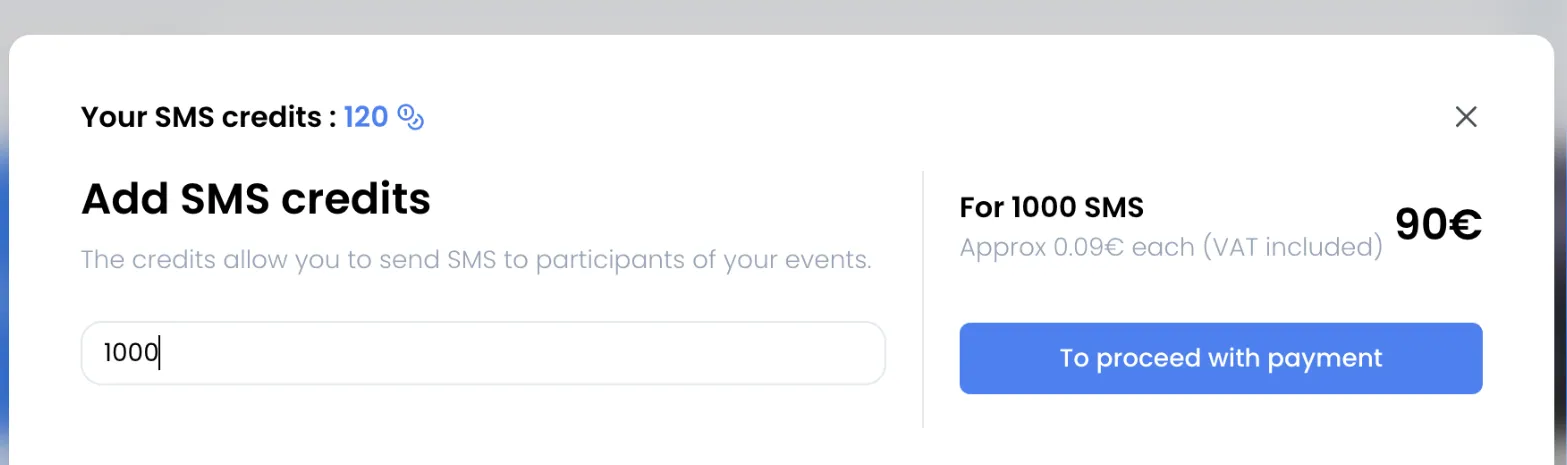
The unit price shown drops with quantity: €0.09 including VAT per SMS, €0.08 from 65,000 SMS and €0.07 from 186,000 SMS. These prices are indicative: the exact amount is the one on the Stripe payment page. Stripe issues an invoice for each purchase.
| Message | Cause |
|---|---|
| “Invalid credits!” | The number entered is not a whole number. |
| “Error creating payment intent!” | The payment could not be prepared, for example with an empty number of SMS or 0. |