
Find your events
The Events page is the home page of the Sweescape dashboard. It shows your events and the ones you collaborate on. To come back to it from any screen, click the SweeBadge logo in the top left corner.
What the page shows
Section titled “What the page shows”At the top, the Events title and the Create one event button (see Create an event).
Just below, the toolbar contains:
- the “Search your event” field;
- two buttons on the right to switch the display: the list (timeline) and the grid.
Events are always sorted by start date, from the nearest to the furthest. There is no other sorting and no filter.
Timeline view
Section titled “Timeline view”This is the default display. Each event takes one row along a timeline.
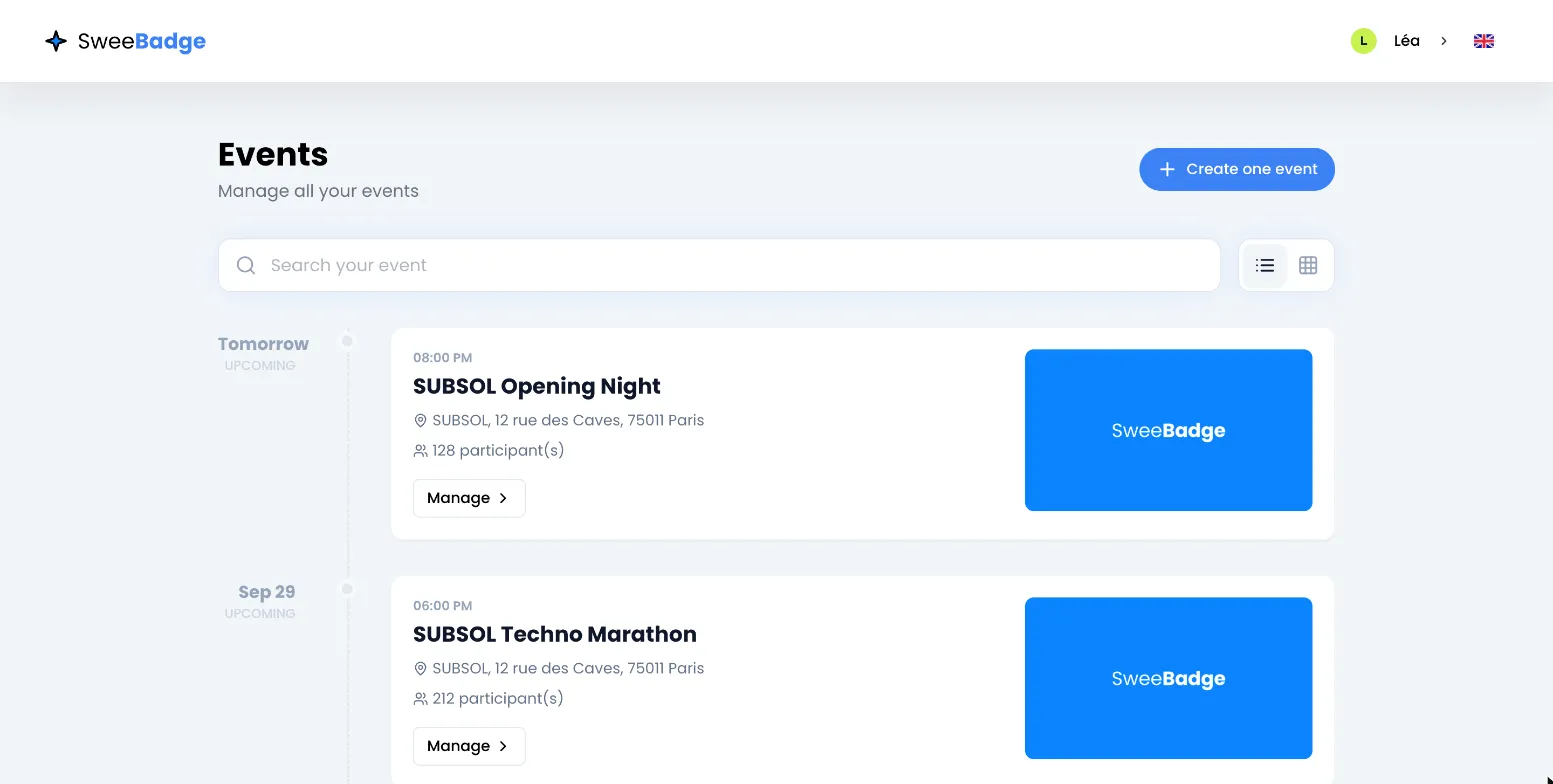
To the left of the timeline is the start date: “Today”, “Tomorrow” or the day and month, with the status below. The card shows:
- the start time;
- the event name;
- the address;
- the number of attendees;
- the Manage button, which opens the event (clicking anywhere on the card does the same);
- the event image.
Grid view
Section titled “Grid view”The grid shows all your events, including past ones, as cards.
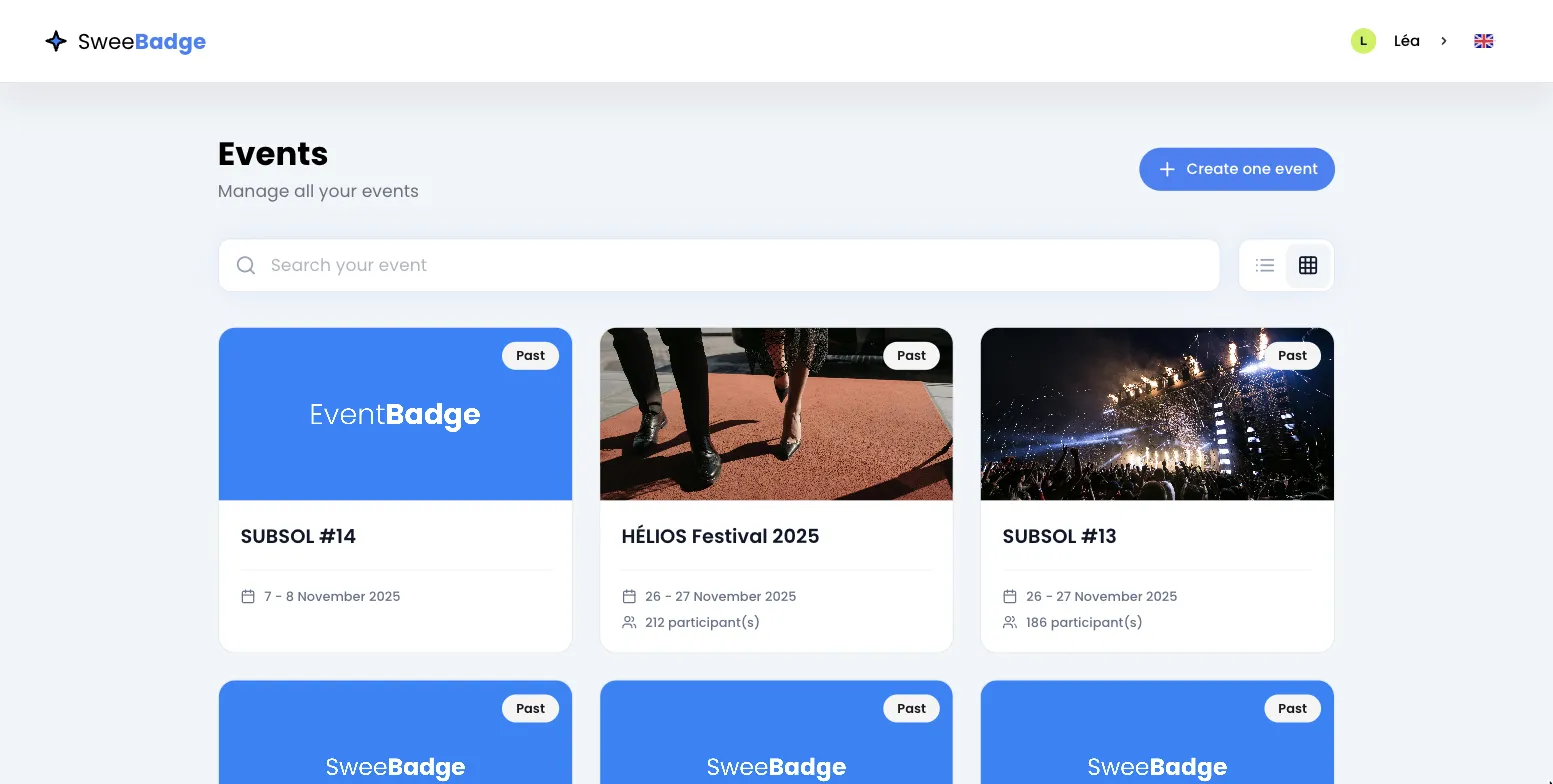
Each card shows the image, a status badge in the top right corner, the name, the dates, and the number of attendees if there is at least one. Clicking the card opens the event.
Statuses
Section titled “Statuses”The status depends only on the event dates:
| Status | Meaning |
|---|---|
| Upcoming | The start date has not been reached yet. |
| Active | The event is ongoing: between the start date and the end date. |
| Past | The end date has passed. |
To change the status, edit the dates in the event settings.
Search for an event
Section titled “Search for an event”Type part of the name in “Search your event”. The list filters as you type, ignoring upper and lower case. The search only looks at the event name.
If nothing matches, the page shows “No events found”.
See also
Section titled “See also”- See your dates in the calendar, for a monthly view with your campaigns and automations.
- Duplicate or delete an event.