
Create and manage tickets
A ticket is a type of seat on sale on your ticketing page: “Early bird”, “Regular”, “VIP”… Each ticket has its own name, price, quantity and, if needed, per-order limits. You create and track tickets in the event’s Ticket tab.
Before you start
Section titled “Before you start”- The VAT rate comes from the event. It is chosen when the event is created (VAT field), applies to all its tickets and cannot be changed afterwards. See Prices, VAT and fees.
- Prices include VAT. The price you enter is the price the buyer pays.
- A ticket cannot be edited once created. Only its visibility (public or code only) can change. Double-check the name, price and quantity before you confirm.
Create a ticket
Section titled “Create a ticket”-
Open your event, then the Ticket tab.
-
In the Your Tickets block, click Add a ticket.
-
Fill in the form. Each field is described in the next section.
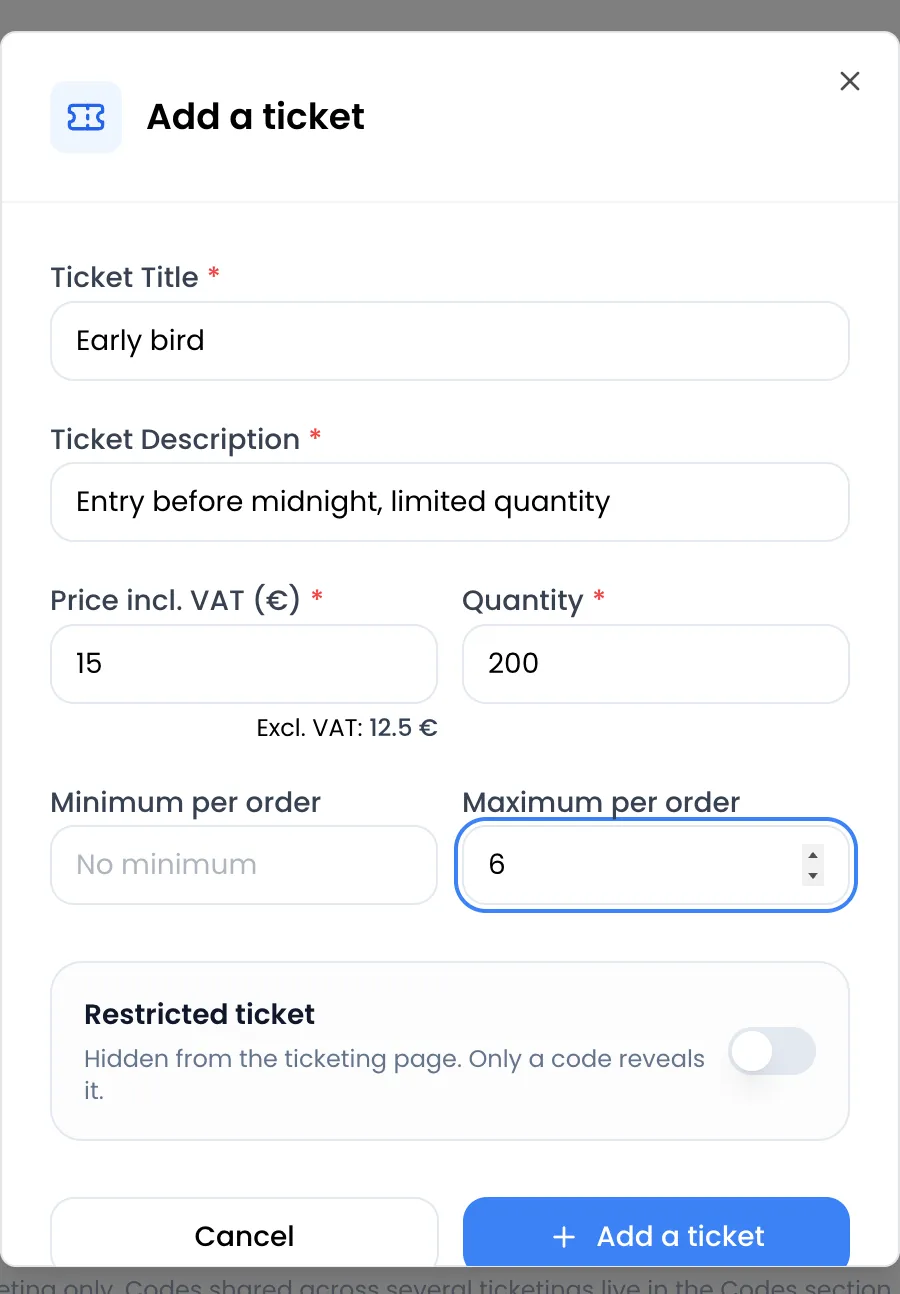
-
Click Add a ticket at the bottom of the window. The button stays greyed out while a required field is empty or invalid.
The message “Ticket has been created successfully!” appears and the ticket joins the list. The window stays open with an empty form, so you can create the next ticket right away, then close it with Cancel.
Form fields
Section titled “Form fields”| Field | What it is for | Rules |
|---|---|---|
| Ticket Title (required) | The ticket name, shown to buyers and printed on their invoice. | 4 to 50 characters. |
| Ticket Description (required) | The text shown under the ticket name in the purchase window. It also appears on the buyer’s invoice. | 10 to 255 characters. |
| Price incl. VAT (€) (required) | The price the buyer pays, VAT included. As soon as the price reaches €1, the Excl. VAT amount appears under the field, calculated with the event’s VAT rate. | 0 for a free ticket, otherwise at least €1. Two decimals at most. |
| Quantity (required) | The number of seats on sale for this ticket. | Whole number, at least 1. |
| Minimum per order | The minimum number of this ticket in a single order, for example 4 for a four-person pack. | Empty by default (No minimum). Whole number, not greater than the maximum or the quantity. |
| Maximum per order | The maximum number of this ticket in a single order. | Empty by default (No maximum). Whole number, at least 1. |
| Restricted ticket | Hides the ticket from the ticketing page. Only an access code reveals it. | Off by default. |
Per-order limits apply at checkout. If the buyer picks a quantity outside the limits, a red message appears under the ticket (“This ticket requires a minimum quantity of 4”, “This ticket is limited to a maximum quantity of 6”) and the order button stays disabled.
Free tickets
Section titled “Free tickets”Enter 0 as the price. The ticket shows as 0.00 € in the purchase window.
When an order totals €0, the buyer skips payment: after the form, they go straight to the confirmation page and receive their tickets by email. No invoice is issued for a free order.
An event with ticketing still requires a connected Stripe account, even if all its tickets are free. See Connect Stripe.
Read a ticket card
Section titled “Read a ticket card”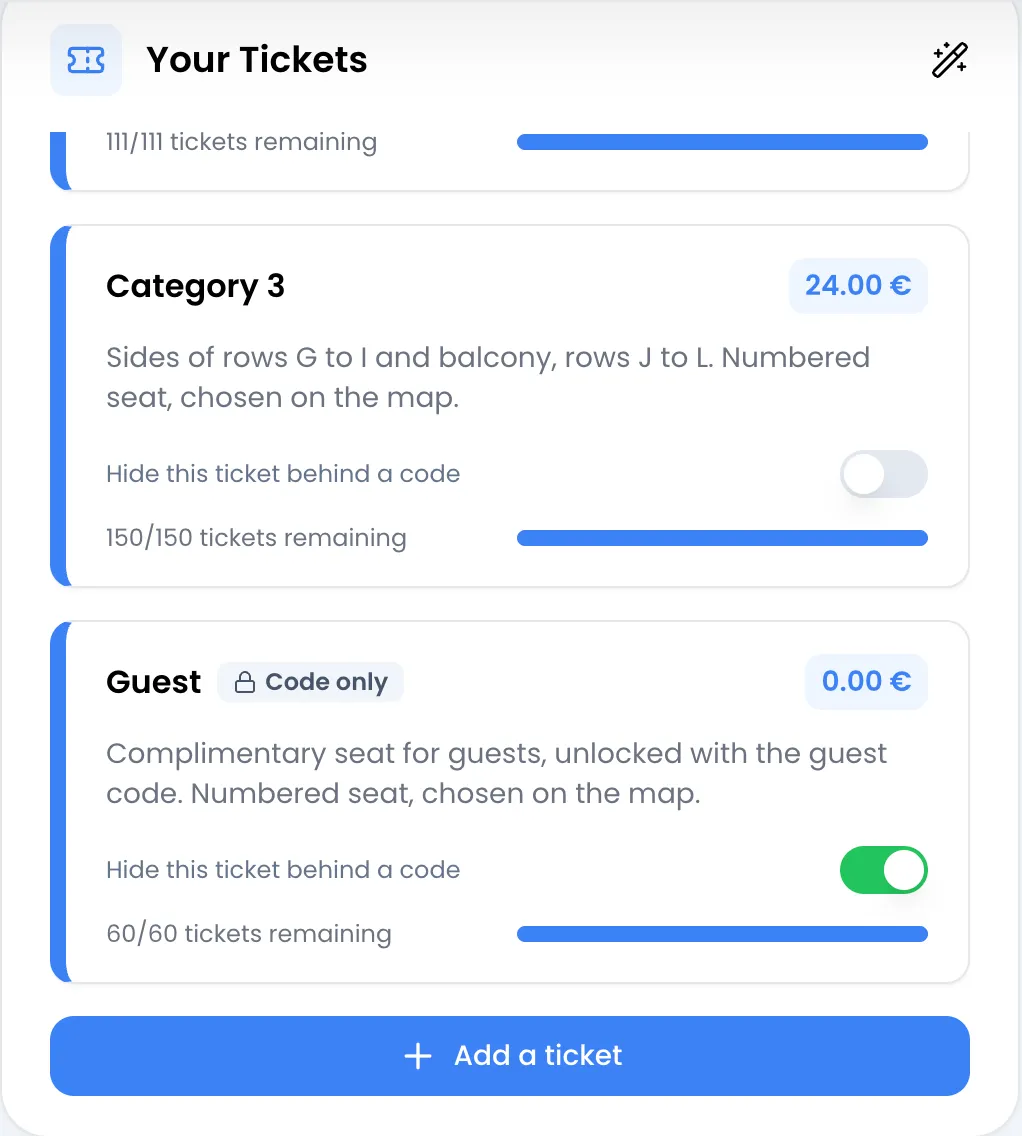
Each ticket appears as a card in the Your Tickets block:
- the ticket name, with the Code only badge if it is hidden;
- the price including VAT;
- the description (hover over it to read it in full);
- the Hide this ticket behind a code switch;
- the tickets remaining counter (remaining / total quantity) and its gauge.
The counter includes paid orders and orders in progress: the seats a buyer picks are held while they fill in the form and pay. If the order is abandoned, the seats go back on sale. See The purchase flow.
On the ticketing page, a sold-out ticket stays visible, greyed out, with the Sold out badge.
Hide a ticket behind a code
Section titled “Hide a ticket behind a code”A hidden ticket does not appear on the ticketing page. It only shows up when the buyer enters a code that unlocks it. This is useful for a partner offer, a category reserved for a works council, or guest seats.
-
On the ticket card, turn on Hide this ticket behind a code. You can also turn on Restricted ticket when you create the ticket.
The message “Ticket is now restricted to code holders.” confirms the change and the Code only badge appears on the card.
-
Create an access code that unlocks this ticket. See Discount and access codes.
To make the ticket visible to everyone again, turn the switch off. The message “Ticket is now visible to everyone.” appears.
The restriction is checked when the order is placed, not only on display: a hidden ticket cannot be bought without a valid code.
Change a ticket’s price or quantity
Section titled “Change a ticket’s price or quantity”A ticket cannot be edited: not its name, description, price, quantity or per-order limits.
- If the ticket has never been ordered, delete it and create it again with the right values.
- If the ticket has already been ordered, create a new ticket (for example “Regular, 2nd release”) and hide the old one behind a code.
Delete a ticket
Section titled “Delete a ticket”-
Hover over the ticket card: a trash icon appears next to the price.
-
Click the trash icon. The confirmation window shows “Are you sure you want to delete this ticket?”.
-
Click Delete now.
Deleting the event’s last ticket deactivates the ticketing page. After creating a new ticket, turn it back on. See Publish the ticketing page.
Ticket display order
Section titled “Ticket display order”Tickets are shown in the order they were created, both in the dashboard and on the ticketing page. They cannot be reordered: create them in the order you want to present them.
The only exception: when a buyer enters a code, the tickets it unlocks move to the top of the list.
Error messages
Section titled “Error messages”| Message | Cause | What to do |
|---|---|---|
| “Invalid title, min 4 characters!” | The title is shorter than 4 characters. | Make the title longer. |
| “Invalid description, min 10 characters!” | The description is shorter than 10 characters. | Complete the description. |
| “Invalid price, max 2 decimal places!” | The price has more than two decimals. | Round to the cent. |
| “Invalid quantity, must be at least 1!” | The quantity is empty, zero or not a whole number. | Enter a whole number. |
| “Ticket is assigned to a participant or an order!” | The ticket has already been used. | Hide it behind a code instead of deleting it. |