
AI in Sweescape
Sweescape includes a writing and analysis assistant. It writes your emails, suggests tickets, reviews the design of your invitation and summarizes your attendees’ feedback. Each request uses one AI credit from your plan.
Where AI helps
Section titled “Where AI helps”Look for the magic wand icon: it starts the AI.
| Where | What the AI does |
|---|---|
| Text editor of an invitation or automation email | Writes the email from your instructions. |
| An event’s Ticket tab, next to Your Tickets | Suggests ticket types based on your past sales. |
| An event’s Invitation tab, next to Your invitation | Reviews the design of your invitation and suggests improvements. |
| SweeAnalytics, Feedback view | Summarizes the answers to your satisfaction survey. |
Write an email
Section titled “Write an email”In the form of the invitation email or of an automation, when Use email builder is turned off, the text editor toolbar has a magic wand.
- Click the wand.
- In the Describe to SweeAgent what you want to write field, describe the email: tone, message, information to include.
- Click Send.
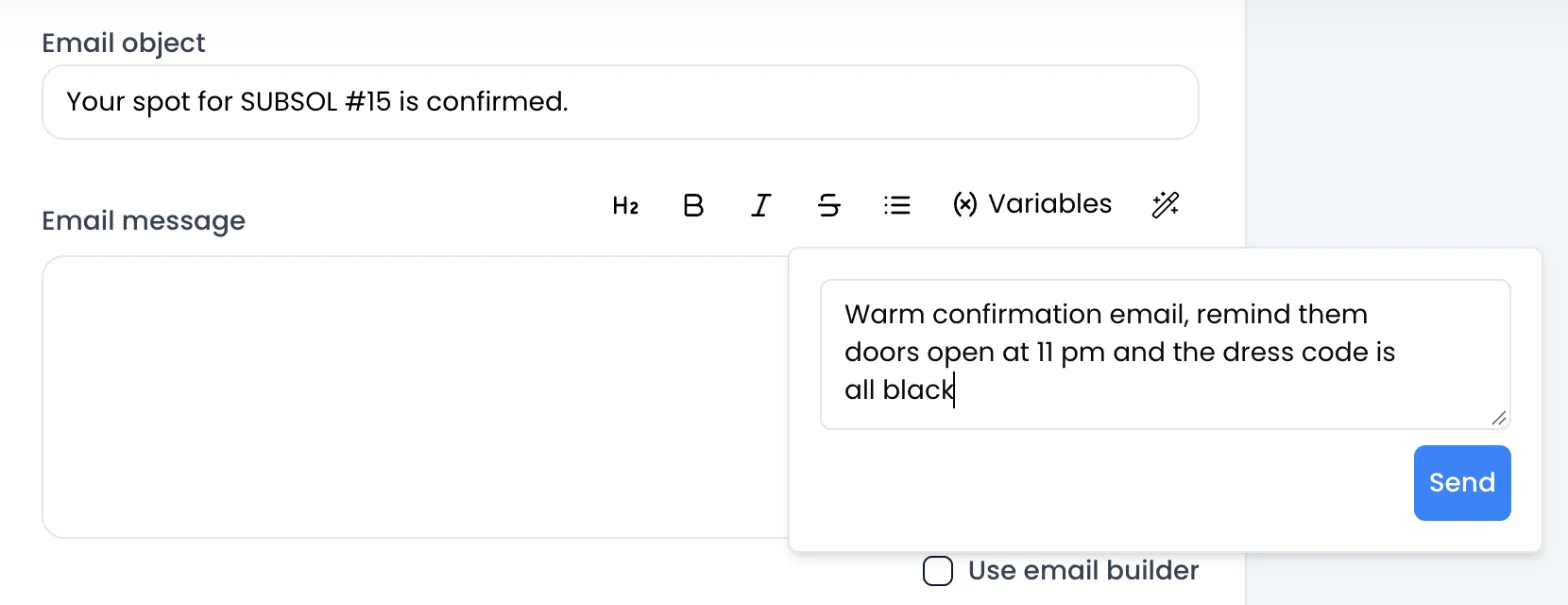
The email is written in the editor as you watch and replaces the text already there. The AI knows the event’s name, venue and dates, and can insert personalization variables such as the attendee’s first name. Review and adjust the text before sending it.
Suggest tickets
Section titled “Suggest tickets”See Generate tickets with AI. Suggestions are based on the sales of your events: without enough history, the message “Not enough data to generate tickets!” appears.
Review your invitation
Section titled “Review your invitation”In the Invitation tab, click the wand next to Your invitation. A “Proposition pour votre invitation” window (shown in French) displays the analysis of the design and ideas for improvement. Create your invitation design first: the AI analyzes that image.
Summarize feedback
Section titled “Summarize feedback”See Attendee feedback.
AI credits
Section titled “AI credits”Each request started with the magic wand or with Generate AI Summary uses one credit. Credits renew on the 1st of each month and do not carry over from one month to the next.
| Plan | AI credits per month |
|---|---|
| Free Plan | 0 |
| Advanced Plan | 25 |
| Agency Plan | 50 |
When your credits for the month run out, the message “You have reach your AI limit” appears and the AI stops answering until the next month. Sweescape does not show a counter of remaining credits.
To change plans, see Subscription.
AI Standard and AI Premium
Section titled “AI Standard and AI Premium”A badge next to the event name, at the top of its page, shows your AI level:
- AI Standard: the level of the Advanced Plan. It also shows on an account without a subscription, which has no credits.
- AI Premium: the level of the Agency Plan, which uses a more advanced AI model for all the features above.
Your data
Section titled “Your data”To answer, the AI only receives what it needs: the event information and your instructions for an email, the detail of your ticket sales for ticket suggestions, the invitation image for its review, the survey answers for the summary. Requests are processed by an OpenAI model hosted on Microsoft Azure.