
Check attendees in and reopen scanning
On the day of the event, every entry is recorded: this is the check-in. You follow it from the Participants tab, where each person goes from Registered to Present. For an event over several days or with several entries, you can close check-in so tickets become scannable again.
How a check-in is recorded
Section titled “How a check-in is recorded”- By scanning: your team scans the ticket’s QR code with the SweeScan app. See Scan tickets.
- By hand, from the dashboard: in the Participants tab, open the row menu (the gear in the Actions column) and click Check In. This is useful for someone who lost their ticket and whose identity you have checked.
In both cases, the Status column changes to Present and the message “Your registration has been successfully created!” appears. If the person was already present, for example because they were just scanned at the door, you get “Participant already registered!”.
Cancel a check-in
Section titled “Cancel a check-in”If a person was checked in by mistake, open their row menu and click Check Out. They go back to Registered and their ticket can be scanned again.
Follow the entries
Section titled “Follow the entries”As soon as at least one person is present, the Check-in card appears at the top of the Participants tab. It shows the number of attendees scanned out of the total, for example “42 of 120 participants scanned”.
The page does not refresh on its own while your team is scanning: reload it to see the latest entries.
To see who is missing, look for the rows marked Registered in the table, or export the list: the “sign” column is “true” for those present.
Close check-in
Section titled “Close check-in”A scanned ticket cannot be scanned a second time. Closing check-in resets the counters: tickets become scannable again for the next session. This is what you need for:
- a festival over several days, with passes valid every day;
- a party where people may go out and come back in;
- a seminar with several sessions to check.
-
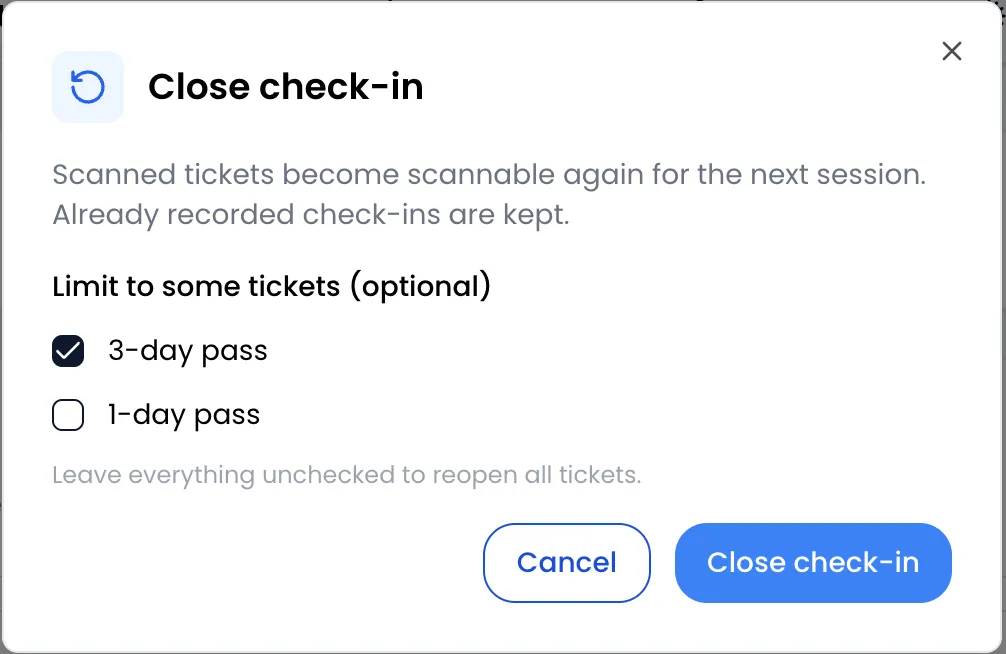
In the Participants tab, Check-in card, click Close check-in.
-
If needed, tick tickets under Limit to some tickets (optional). Only the ticked tickets will become scannable again. Leave everything unchecked to reopen all tickets.
-
Click Close check-in.
The message “Check-in closed, 42 tickets can be scanned again.” tells you how many tickets were reopened. The people concerned go back to Registered in the table, and the Check-in card disappears until the next scan.
Check-ins already recorded are not erased: as the window says, they are kept.