
Discount and access codes
Buyers enter a code in the purchase window of your ticketing page. A code either grants a discount or reveals hidden tickets. It can work on a single ticketing page or on several, with a shared quota.
Two types of codes
Section titled “Two types of codes”| Discount code | Access code | |
|---|---|---|
| Effect | Applies a percentage or euro discount. | Reveals tickets hidden from the ticketing page, without any discount. |
| Main setting | Discount Type and Discount Value. | Tickets to unlock (at least one). |
| Tickets affected | The whole order, or only the tickets picked in Tickets the discount applies to. | The tickets picked, if they are marked Restricted ticket or Code only. |
| Examples | SUMMER10: 10% off the whole order. EARLY5: €5 off. | PARTNER50: access to the “VIP Area” ticket reserved for partners. |
An access code only reveals hidden tickets. A ticket visible to everyone can be in its list, but it does not become any more visible. To hide a ticket, see Create and manage tickets.
Where to create a code
Section titled “Where to create a code”- For a single ticketing page: the event’s Ticket tab, Codes block. The code only works on this ticketing page.
- For several ticketing pages: the Codes page, available from the menu that opens when you click your first name at the top right. The code works on every ticketing page you select, and its quota is shared between them.
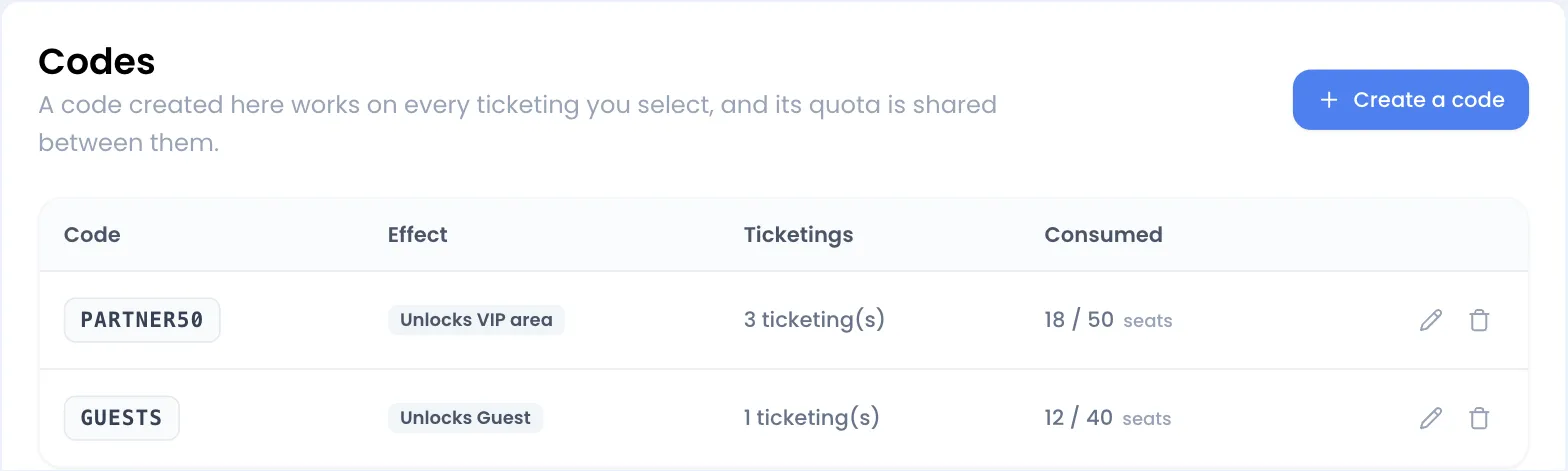
The Codes block of the Ticket tab also lists the cross-ticketing codes that include this event.
Create a code for one ticketing page
Section titled “Create a code for one ticketing page”-
Open your event, then the Ticket tab. Scroll down to the Codes block.
-
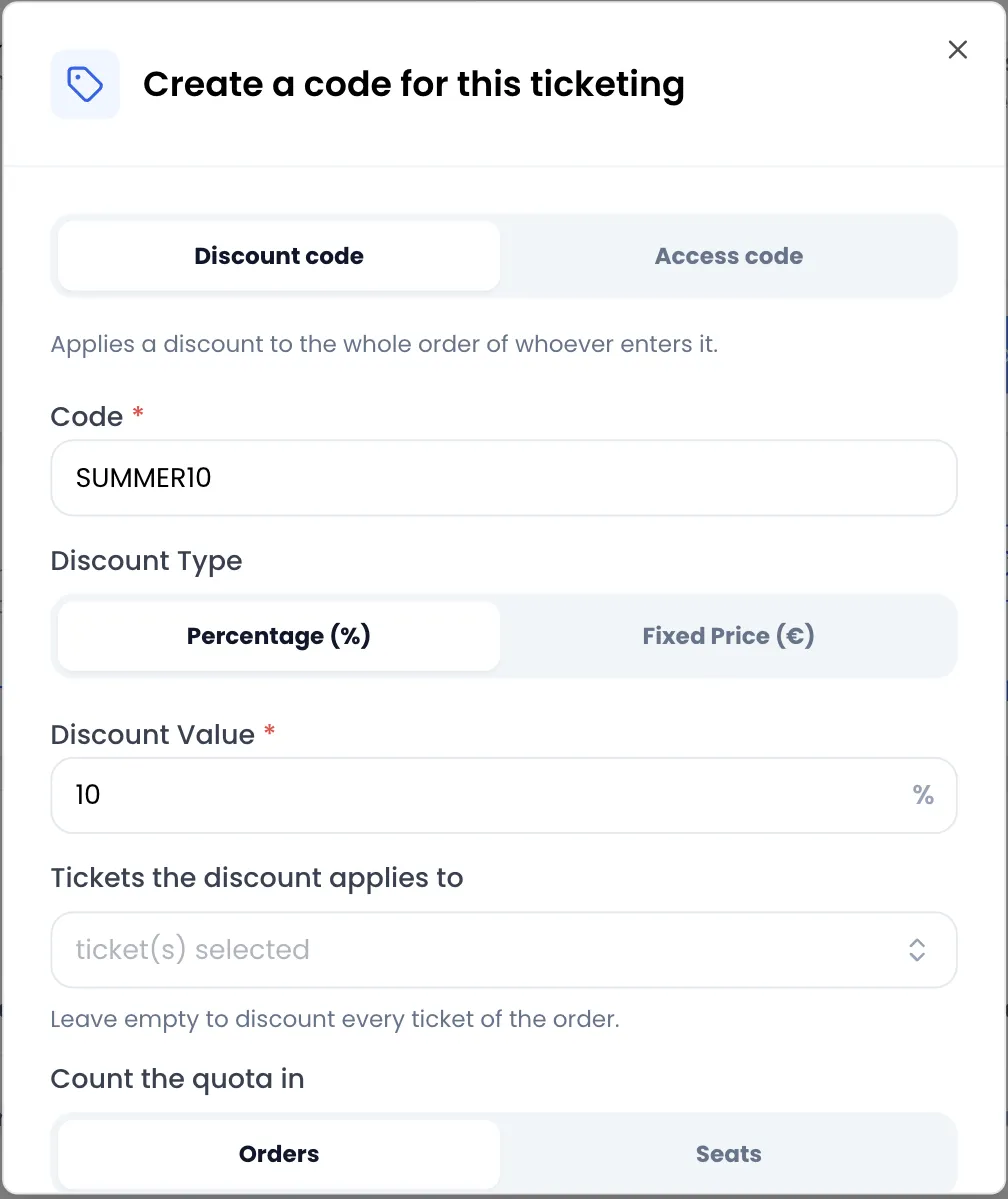
Click Create a code. The Create a code for this ticketing window opens.
-
Choose the Discount code or Access code tab.
-
Enter the Code, for example SUMMER10. Letters, digits, hyphens and underscores only: no spaces, no accents. The code is displayed in capitals, and buyers can type it in upper or lower case.
-
For a discount code, choose the Discount Type: Percentage (%) or Fixed Price (€). Then enter the Discount Value.
-
Pick the tickets:
- for a discount code, Tickets the discount applies to is optional. Leave it empty to discount every ticket of the order;
- for an access code, Tickets to unlock is required.
-
In Count the quota in, choose Orders or Seats. The difference is explained further down, in the section about the quota.
-
Leave Unlimited quantity on for a code with no limit. Otherwise, turn it off and enter the number of Maximum orders or Maximum seats.
-
Click Add Code. The message “Code has been created successfully!” appears.
Create a code for several ticketing pages
Section titled “Create a code for several ticketing pages”A cross-ticketing code is useful when the same person must be able to use their code on several events: a partner with 40 seats for the whole season, a pass valid for three SUBSOL nights, a loyalty discount on all your summer events.
-
Click your first name at the top right, then Codes.
-
Click Create a code. The Create a code across ticketings window opens.
-
Fill in the form as for a single ticketing page. One more field appears: Ticketings where this code works. Select one or more events; the search helps you find them.
-
Pick the tickets. The lists offer the tickets of all selected ticketing pages, with the event name under each ticket.
-
Click Add Code.
Change the ticketing pages of a cross-ticketing code
Section titled “Change the ticketing pages of a cross-ticketing code”-
On the Codes page, click the pencil icon at the end of the code’s row.
-
In the “Where does PARTNER50 work?” window, adjust the Ticketings and the Unlock restricted tickets list. For a discount code, this list is the set of tickets the discount applies to.
-
Click Save. The message “Ticketings have been updated successfully!” appears.
Only a code’s ticketing pages and tickets can be changed. The code name, its discount and its quota stay as they were when it was created. A code created for a single ticketing page cannot be changed at all: delete it and create it again.
When you duplicate an event, the cross-ticketing codes that cover the original event automatically cover the copy. Codes created for a single ticketing page are not copied. See Duplicate or delete an event.
The quota: orders or seats
Section titled “The quota: orders or seats”The quota sets how many times a code can be used. It is counted in the unit chosen in Count the quota in:
- Orders: each order that uses the code consumes one unit, whatever the number of tickets. A code limited to 100 orders can be used 100 times.
- Seats: each ticket bought with the code consumes one unit. Only the tickets the code applies to are counted: the unlocked tickets for an access code, the targeted tickets for a discount, or every ticket of the order if the discount targets none.
For a cross-ticketing code, the quota is shared by all its ticketing pages. If PARTNER50 is limited to 50 seats and 20 seats are taken for the first game, 30 remain for the next ones.
A few useful rules:
- A unit is counted as soon as the buyer confirms their ticket selection. If the order is cancelled, expires or the payment fails, the unit goes back to the code.
- Two buyers ordering at the same time cannot exceed the quota, even on two different ticketing pages.
- An order that contains none of the tickets targeted by the code consumes nothing and gets no discount.
How a discount is calculated
Section titled “How a discount is calculated”- Percentage (%): the discount applies to the VAT-inclusive total of the tickets concerned.
- Fixed Price (€): the amount is taken off once per order, not per ticket. It never exceeds the total of the tickets concerned: an order never goes below €0.
- A discount that brings the order down to €0 makes it free: the buyer skips payment.
Example on an order of 2 “Regular” tickets at €35 and 1 “VIP” ticket at €60, i.e. €130 including VAT:
| Code | Discount | Total paid |
|---|---|---|
| 10% on the whole order | €13.00 | €117.00 |
| 10% targeted on “VIP” | €6.00 | €124.00 |
| €15 on the whole order | €15.00 | €115.00 |
| €80 targeted on “VIP” | €60.00 (capped at the VIP price) | €70.00 |
VAT is recalculated on the discounted total. See Prices, VAT and fees.
Track and delete your codes
Section titled “Track and delete your codes”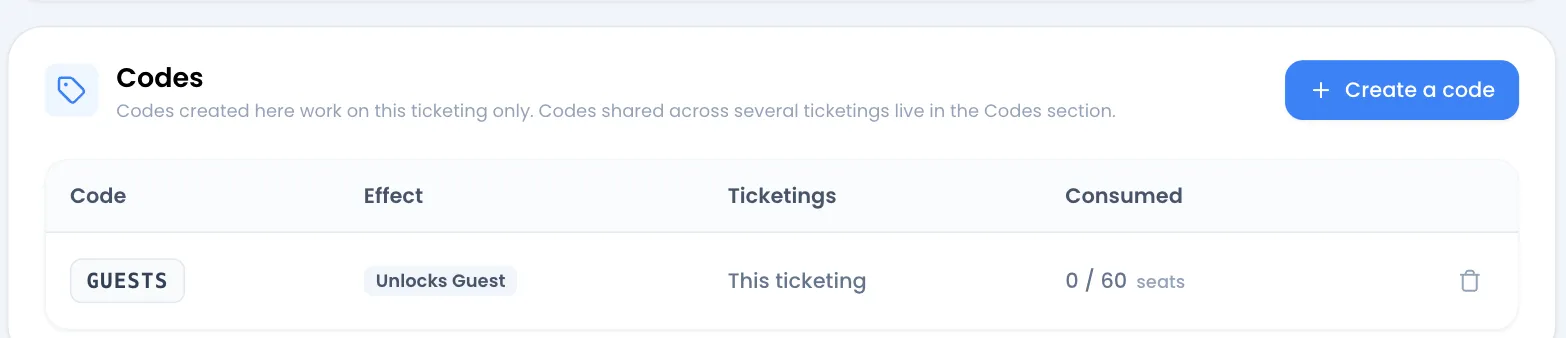
The code table shows, for each code:
- Code: the code to share;
- Effect: the discount (“-10%” or “-15.00 €”) and the tickets concerned (“Only on VIP” for a targeted discount, “Unlocks VIP Area” for an access code, or the number of tickets beyond two);
- Ticketings: “This ticketing”, or the number of ticketing pages for a cross-ticketing code;
- Consumed: the number of units used out of the quota, or out of ∞ for an unlimited code, followed by the unit (orders or seats). Orders being paid are included.
To delete a code, click the trash icon at the end of its row, then Delete now. Orders already placed keep their discount.
What the buyer sees
Section titled “What the buyer sees”-
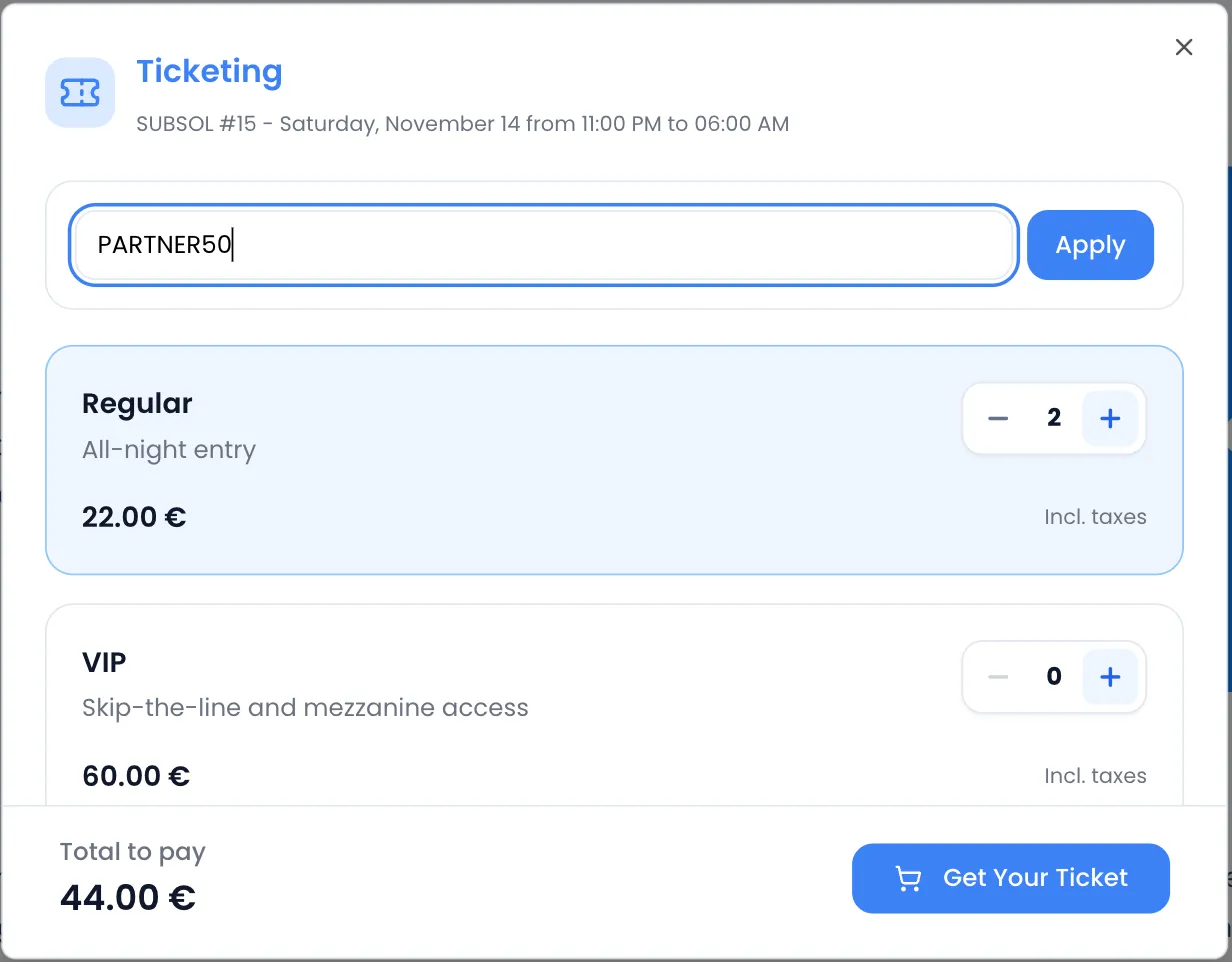
In the purchase window, before picking tickets, the buyer clicks I have a code.
-
They type their code in the field that opens, then click Apply.
-
If the code is valid, the message “Code applied!” appears. A green box shows the code and, for a limited code, what is left (“12 uses left on this code” or “8 seats left on this code”).
-
Unlocked tickets move to the top of the list, with a dashed border and the Unlocked ticket badge. For a targeted discount, the tickets concerned carry a badge (“-10%” or Discount applies) and the note “Discount applies to the tickets marked below only.” appears.
The discount then shows in the total (Discount :) until payment. For a quota counted in seats, the + button of the tickets concerned locks once the remaining quota is reached.
An order accepts only one code. To change it, the buyer clicks the cross in the green box: the code is removed, along with any unlocked tickets already in the cart.
Messages the buyer may see:
- “This code does not exist!”: the code is unknown or does not apply to this ticketing page;
- “This code has reached its limit!”: the quota is used up;
- “None of the tickets you selected is covered by this code.”: the discount targets other tickets than those in the cart.
The colour of unlocked tickets and their badge can be set in the ticketing page editor. See The page editor.
Error messages when creating a code
Section titled “Error messages when creating a code”| Message | Cause |
|---|---|
| “This code already exists on one of these ticketings!” | An identical code (case ignored) already exists on one of the chosen ticketing pages, or another cross-ticketing code already has this name. |
| “Code can only contain alphanumeric characters, underscores, and hyphens” | The code contains a space, an accent or another character. |
| “An access code must unlock at least one ticket” | No ticket is selected in Tickets to unlock. |
| “Discount value is required” | The discount value is empty. |
| “Select at least one ticketing” | No ticketing page is selected for a cross-ticketing code. |