
Colours, fonts and SEO
Page settings apply to the whole ticketing page: its visual identity (colours, fonts, purchase window) and the way it appears in Google and on social networks.
Open the page settings
Section titled “Open the page settings”-
Open the editor: Ticket tab, then Open Page Builder.
-
Click outside any block so that no block is selected. The right-hand panel is then titled Page.
-
The settings are sorted into three tabs: Content (SEO), Design (theme, background, purchase window, cookie banner) and Advanced (tracking scripts, CSS).
As with blocks, remember to close the editor and click Save or Publish to keep your settings.
The theme: colours and fonts
Section titled “The theme: colours and fonts”Design tab, 🎨 Page theme section. Choose your colours once here, then reuse them in any block through the Theme colours row of every colour picker.
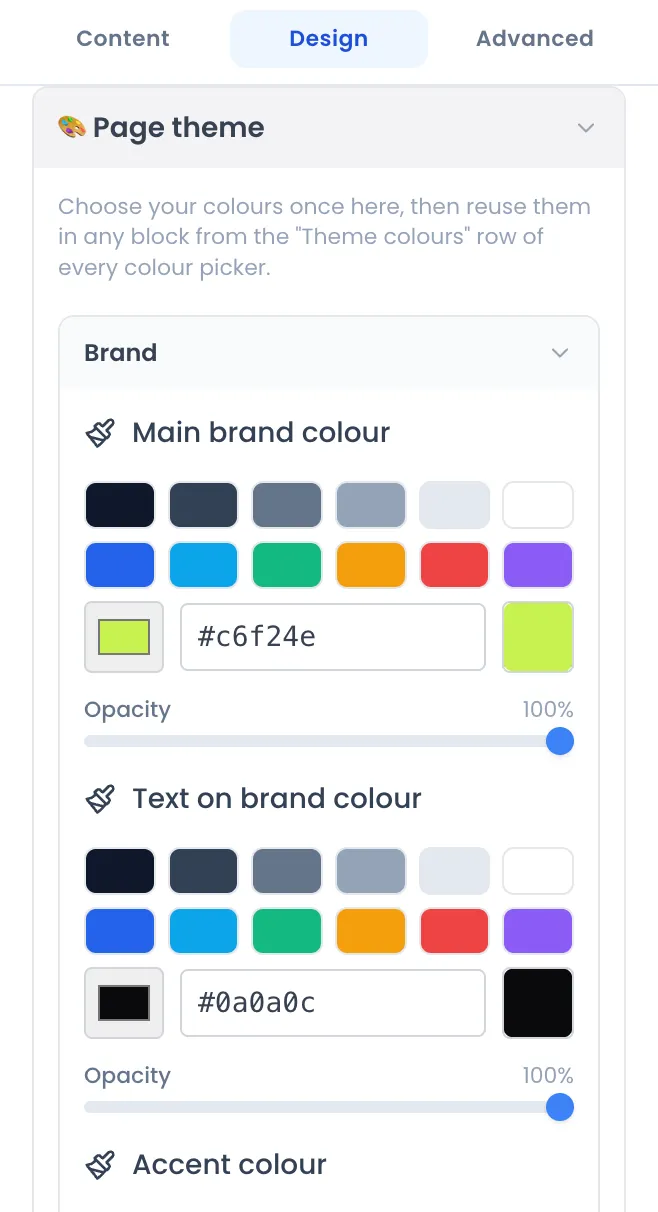
| Group | Colours | Used for |
|---|---|---|
| Brand | Main brand colour, Text on brand colour, Accent colour | Buttons, bands, highlighted elements, and the text on top of them. |
| Text | Headings, Body text, Secondary text | The three levels of text. |
| Surfaces | Card background, Alternate background, Borders | Backgrounds of sections and boxes, lines. |
Why use theme colours? A block set to a theme colour changes on its own when you edit the theme. Ready-made sections already use these colours: change the brand colour and the whole page follows.
Fonts. Heading font applies to every title, Body font to paragraphs, labels and buttons. Six choices: Default (system font), Poppins (modern, rounded), Inter (clean, neutral), Playfair Display (elegant serif), Lora (classic serif) and Oswald (bold, condensed).
Background and margins. Still in Design, Background color colours the background of the whole page and Page margins sets the space around the content.
The purchase window style
Section titled “The purchase window style”Design tab, 🎟️ Billetterie Popup section. It sets the colours of the window that opens when the buyer clicks an Open ticketing button. Each group expands:
- 🪟 Modal: window background and border.
- 🎨 Backgrounds: background of the Ticket Selection Step and of the Form Step.
- 🎫 Ticket Cards: card background and border, selected state, sold-out state, state unlocked by a code, and their badges.
- 📋 Form Sections, 🔤 Titles, 🏷️ Labels & Descriptions, ✏️ Inputs.
- ⏱️ Timer: the time left to finalise the order, and the “Hurry!” text.
- 💶 Prices, ✨ Icons, ➕ Quantity Buttons, 📌 Footer Bar, 🔘 Primary Button.
To check the result, open the editor’s Preview and click your ticketing button.
Title and description for Google
Section titled “Title and description for Google”Content tab of the Page panel.
| Setting | Role | Good to know |
|---|---|---|
| Title | The title of the browser tab, of the Google result and of share previews. | Pre-filled with the event name. If empty, the event name is used. |
| Meta Description | The text shown under the title in Google and in share previews. | 160 characters maximum, with a counter. Pre-filled with a sentence using the event name, dates and address. Beyond 155 characters, it is cut with “…”. |
| Meta Keywords | A list of keywords. | 255 characters maximum. Pre-filled with the event name, the year and the address. |
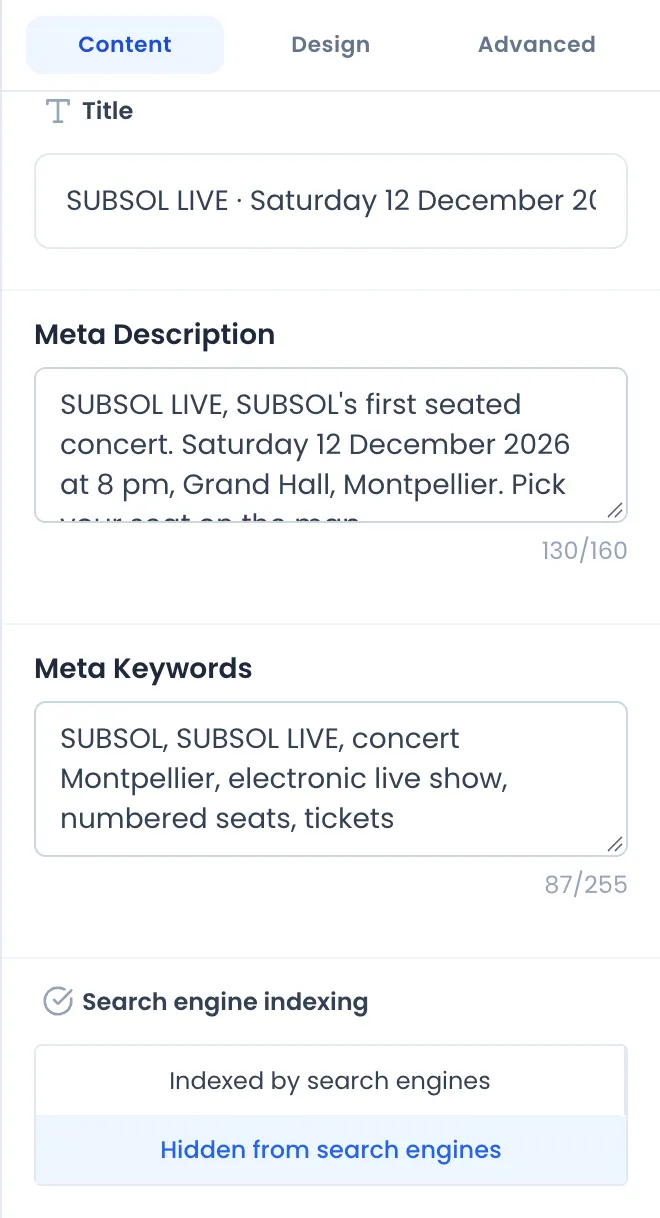
If you later change the event name or dates, the page title and description do not change on their own: update them here.
The share image
Section titled “The share image”When someone shares your page link (WhatsApp, Instagram, Facebook, LinkedIn, iMessage…), the preview shows the Title, the Meta Description and the event image.
This image is not set in the editor: it is the Event Image, in the event’s Settings tab, Event Informations card. It is announced to social networks at 1,200 × 630 pixels: an image in that format (or ratio) displays without surprise cropping. See Event settings.
Search engine indexing
Section titled “Search engine indexing”Content tab, Search engine indexing setting:
- Hidden from search engines (default): the page asks Google and other engines not to show it in their results. It remains reachable by anyone who has the link.
- Indexed by search engines: the page can appear in search results.
The page can only be indexed once it is published. Choose Indexed for a public event you want people to find; keep Hidden for a private event, an invitation-only night or a page still being tested.
The icon shown in the browser tab (favicon) cannot be customised from the editor.
Advanced settings
Section titled “Advanced settings”Advanced tab of the Page panel:
- Tracking scripts (GTM, Meta Pixel, GA4): your tracking codes. See Pixels and tracking scripts.
- Global CSS (Applied to the entire page): for people comfortable with CSS, style rules applied to the whole page. In the editor, this CSS only applies to the page area: some effects, especially on the purchase window, are only visible on the published page.
See also: Ticketing page blocks and Publish and share the page.