
Duplicate or delete an event
Do you run the same party every month? Duplicate it: tickets, ticketing page, invitations and fields are carried over, and all that is left is to change the dates. Both actions are in the event’s Settings tab and are reserved for its owner.
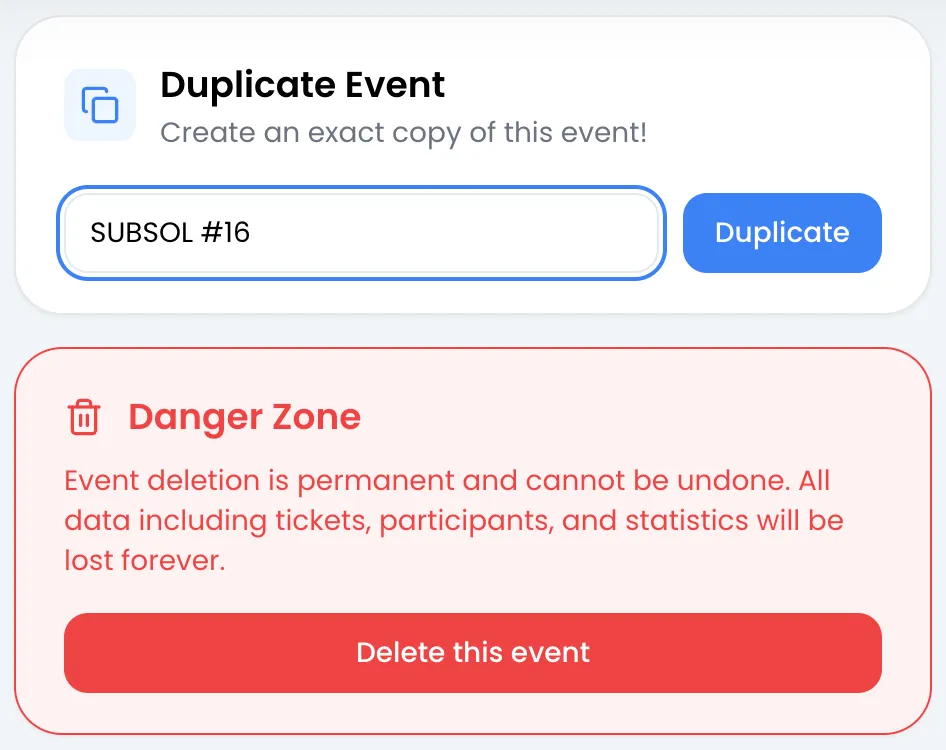
Duplicate an event
Section titled “Duplicate an event”-
Open the event to copy, then the Settings tab.
-
In the Duplicate Event card, type the name of the copy in the “Name of the duplicated event” field.
-
Click Duplicate.
The copy opens right away. It appears in your event list as an independent event: editing it does not affect the original.
If the name field is empty, the message “Invalid name!” appears.
What is copied
Section titled “What is copied”- The event type, the address, the Stripe account and the VAT rate.
- The fields asked of attendees (see Custom fields).
- For an event with ticketing: all tickets (name, description, price, quantity, minimum and maximum per order, visibility), with fresh stock.
- For an event with ticketing: the ticketing page, unpublished.
- The invitation email and SMS, and the PDF ticket template with its background.
- The installed extensions, with their settings.
- Codes valid on several ticketing pages: they are extended to the copy. They are the same codes, not copies: their usage limit is shared between the events. See Promo codes and access codes.
What is not copied
Section titled “What is not copied”- Attendees, check-ins and orders: the copy starts from zero.
- The dates: the copy gets temporary dates, starting 24 hours after the duplication and ending 48 hours after.
- The event image: the copy shows the default image.
- Collaborators, automations and the Wallet pass design.
- Codes that belong only to the original event.
- The custom domain: it stays linked to the original event.
Delete an event
Section titled “Delete an event”-
Open the event, then the Settings tab.
-
In the Danger Zone card, click Delete this event.
-
In the Are you sure? window, click Delete now. Cancel closes the window without deleting anything.
You are taken back to the Events page.
What is deleted
Section titled “What is deleted”- The tickets, the ticketing page and its link, including on a custom domain.
- The attendees, their check-ins and the orders recorded in Sweescape.
- The use of tickets already sent: the link to the ticket no longer opens and the event disappears from SweeScan.
- The invitation email and SMS, the ticket template, automations, installed extensions and the Wallet pass design.
- Collaborators’ access to this event.
- The event’s statistics in SweeAnalytics.
- The images and files uploaded for the event.
What is kept
Section titled “What is kept”- Payments already collected stay on your Stripe account: deleting refunds no one. See Orders and refunds.
- Your codes in the Codes menu: they are simply no longer linked to this event.
- Audiences created from the event, and your campaigns.