
See your dates in the calendar
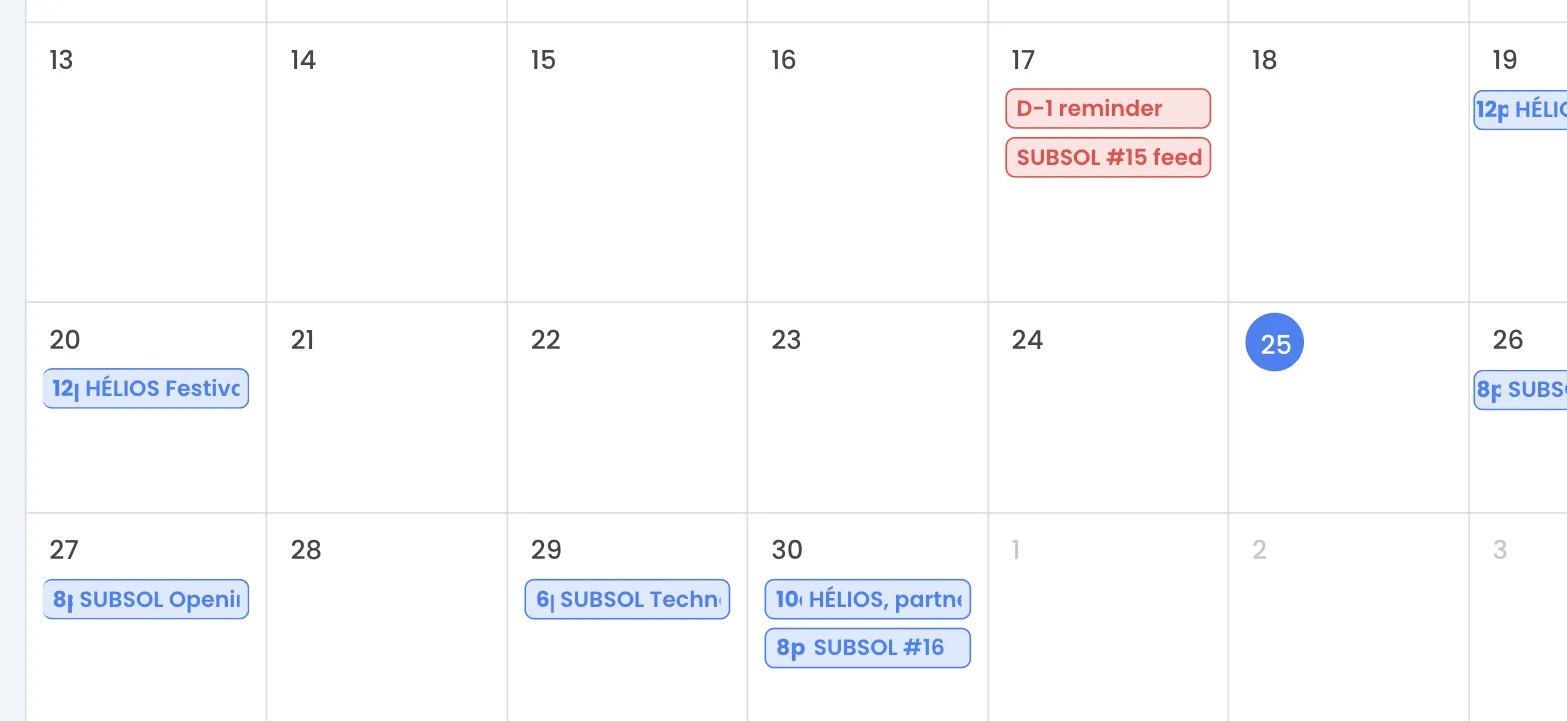
The global calendar brings together, in a monthly view, everything that has a date: your events, your scheduled email and SMS campaigns, and your events’ automations. It helps you avoid sending a campaign on the night of a big show, or see your whole season at a glance.
Open the calendar
Section titled “Open the calendar”-
In the top right corner of the dashboard, click your first name to open the menu.
-
Click Calendar.
The Global Calendar page opens on the current month.
Read the calendar
Section titled “Read the calendar”- The arrows on each side of the title move to the previous or next month.
- Each item has its own color, repeated in the legend at the bottom right:
| Color | Legend | What is shown |
|---|---|---|
| Blue | Events | All your events, including those you collaborate on, from their start date to their end date. |
| Green | Campaigns | Campaigns that have a scheduled send date, on the day of sending. |
| Red | Automations | Your events’ automations that are scheduled or already sent, on the planned day. |
Campaigns sent without a scheduled date and draft automations are not shown.
See an item’s details
Section titled “See an item’s details”Click an item: a window opens next to it. Click the cross or anywhere else to close it.
| Item | What the window shows | Button |
|---|---|---|
| Event | Dates, times, address and number of attendees | View event |
| Campaign | Status (Sent, Send error or Scheduled), send date and time | View campaign |
| Automation | Status (Scheduled or Sent), send date and time, event name | View automation in event |
The View automation in event button opens the related event: then click the Automation tab.
Good to know
Section titled “Good to know”- The calendar is read-only: you cannot create items or move them by dragging. To change a date, edit the event, campaign or automation itself.
- Days, months and date formats follow the language chosen in the dashboard.
- As long as you have not created any event, the calendar keeps loading. Create an event first. See Create an event.