
Create an extension
This page is for developers. An extension is described by a JSON manifest: what it declares (permissions, columns, blocks, rules) is validated by Sweescape when you save it. Its interface is an HTML page hosted by Sweescape and displayed in an iframe isolated from the ticketing page.
Any account can create extensions and use them on its own events. Publishing on the marketplace is reserved to the Sweescape team.
Create the extension
Section titled “Create the extension”-
Open your account menu, click Extensions, then Create extension.
-
Fill in the form:
- Name: the name shown in your lists and in the page editor.
- Package name: the unique id of the extension, in reverse-DNS notation and lower case, for example
com.subsol.seatmap. It cannot be changed after creation and must be free across all of Sweescape. - Description: optional.
-
Click Create. The window moves to the Write the manifest step, with a prefilled example manifest.
Upload the UI files
Section titled “Upload the UI files”Under the manifest editor, the Upload the UI file(s), then copy their URL into the manifest field sends your files to Sweescape.
- Accepted formats:
html,js,mjs,css,json,svg,png,jpg,jpeg,gif,webp,ico,woff,woff2,ttf,map,txt. - 5 MB maximum per file, 50 files maximum per upload.
- Each uploaded file appears with its public URL, a button to copy the URL and a cross to delete it.
Write the manifest
Section titled “Write the manifest”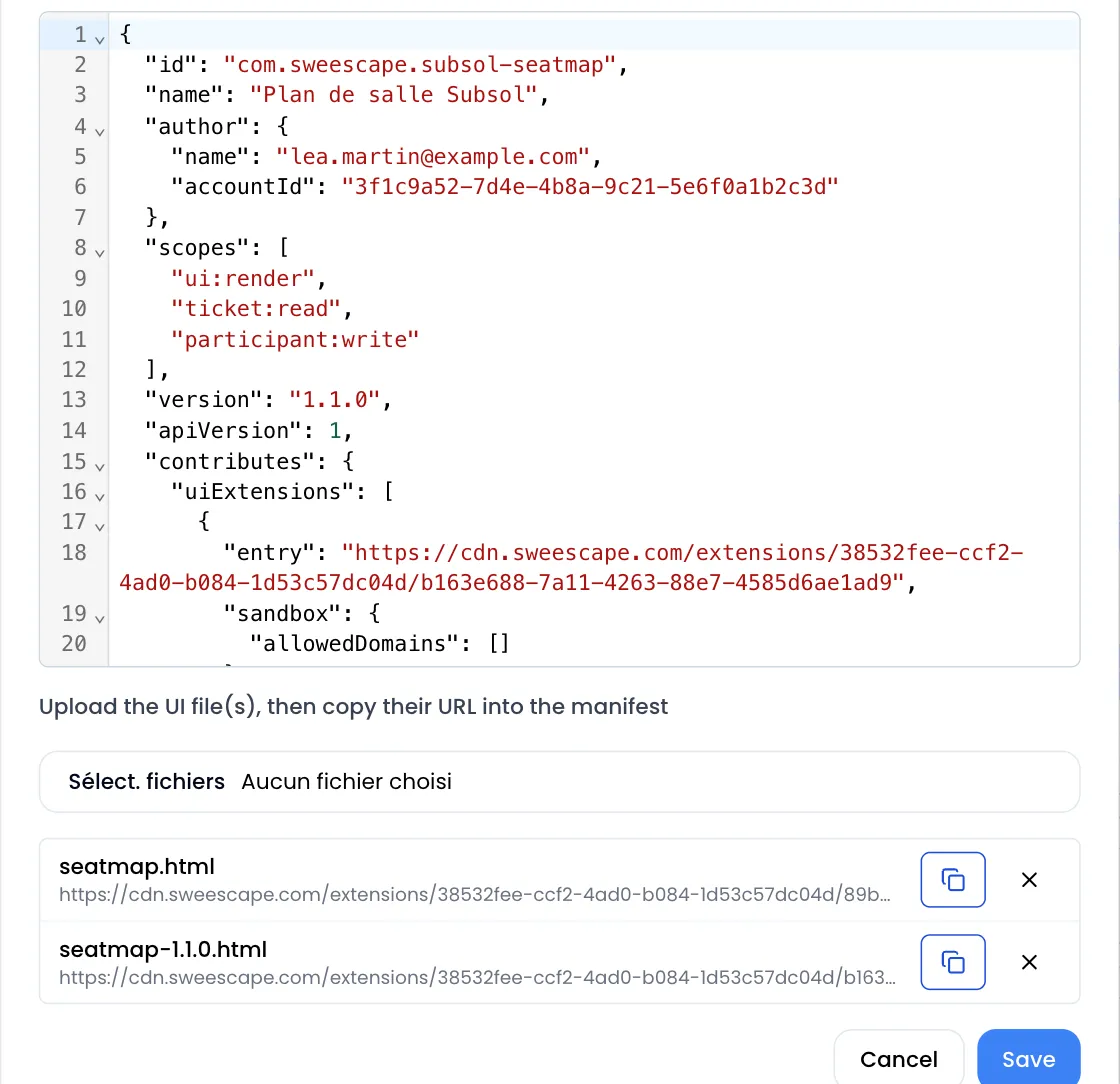
A minimal manifest that displays a block on the ticketing page:
{ "id": "com.subsol.seatmap", "apiVersion": 1, "version": "1.0.0", "name": "SUBSOL seating plan", "description": "Pick your seat before buying.", "scopes": ["ui:render", "ticket:read"], "contributes": { "uiExtensions": [ { "surface": "page.block", "entry": "https://…/copied-file-url", "sandbox": { "allowedDomains": [] }, "descriptor": { "name": "SeatMap", "category": "media", "description": "Seating plan", "fields": { "title": { "type": "text", "description": "Block title" }, "ticket": { "type": "event_ticket", "description": "Ticket sold" } }, "defaultProps": { "title": "Pick your seat", "ticket": "" } } } ] }}| Key | Role |
|---|---|
id |
Same as the package name. |
apiVersion |
Version of the extension contract. Only 1 is accepted. |
version |
Your extension’s version in semver format (1.2.0). |
name, description |
Required. |
scopes |
The declared permissions. |
contributes |
What the extension adds: resourceFields, blocks, uiExtensions, rules. |
configSchema |
Optional: settings described at the extension level. |
The author field is filled in automatically with your account name: no need to write it.
Permissions (scopes)
Section titled “Permissions (scopes)”A permission is written resource:action. Resources are event, ticket, participant, order, payment, ticket_code, audience, campaign, automation, contact, invitation, invoice, analytics, ticket_page, badge. Actions are read, write, create, act, subscribe. Two special permissions complete the list: ui:render and net:fetch.
Each contribution requires its permission, otherwise saving fails:
| Contribution | Required permission |
|---|---|
A block (blocks) or an interface (uiExtensions) |
ui:render |
An interface with allowedDomains |
net:fetch |
A participant column (resourceFields) |
participant:write |
A rule triggered by order.created (for example) |
order:subscribe |
An adjust_price, reject or assign_ticket action |
order:act |
A webhook action |
net:fetch |
A set_field action on a resource |
resource:write |
Surfaces
Section titled “Surfaces”An interface’s surface says where it shows. Today:
checkout.confirmationshows on the confirmation page, after a successful payment;- all other surfaces (
page.block,checkout.step…) appear as a block, under the extension’s name, in the last category of the page editor, currently labelled OTHER.
Block settings
Section titled “Block settings”There are two kinds of blocks:
blocksreuses an existing page editor block, named bybaseComponent(for exampleCard), with your default values indescriptor.defaultProps. No third-party code runs; the settings are those of the original block.uiExtensionsdisplays your own interface (the file given inentry).
For an interface, the fields of the descriptor become the block settings in the page editor. Each field’s description is used as its label. Recognized types:
| Type | Setting displayed |
|---|---|
text (and any unknown type) |
Text field. |
textarea |
Text area. |
number |
Number field. |
boolean |
Yes / No choice. |
color |
Color picker. |
select, radio |
List of the declared options. |
array |
List of items whose sub-fields are described in arrayFields. |
event_ticket |
List of the event’s tickets. The value is the ticket id. |
The values entered by the organizer are passed to your interface at startup (see below). defaultProps gives the default values.
Participant columns
Section titled “Participant columns”resourceFields adds columns to the event’s attendees, which your interface fills in:
"resourceFields": [ { "resource": "participant", "column": { "name": "seat", "type": "text", "required": true, "source": "ui", "unique": true } }]name: lower case, digits and_, starting with a letter.firstname,lastnameandemailare reserved.type:text,number,date,booleanorselect(withoptions).source: "ui": the value comes from your interface, never from the checkout form.unique: true: the value can only belong to one attendee of the event (a seat, a time slot). Sweescape refuses an order whose value is already taken or held by a cart in progress.
These columns show in the attendee list as long as the extension is active on the event.
Talk to the page
Section titled “Talk to the page”Your interface runs in an iframe with sandbox="allow-scripts" on an isolated origin. It receives no token and talks to the page only through postMessage.
| Message sent by the iframe | Effect |
|---|---|
{ type: "sweescape:ready" } |
Asks to start. The page answers sweescape:init with config (the block settings) and context. |
{ type: "sweescape:resize", height } |
Adjusts the iframe height, in pixels. |
{ type: "sweescape:set-field", field, value } |
Saves a participant column value for the current purchase. |
{ type: "sweescape:checkout", ticketId, fields } |
Opens the purchase window on this ticket, quantity 1, with these column values. |
{ type: "sweescape:checkout", items: [ { ticketId, quantity, units } ] } |
Opens the purchase window on several tickets. units gives the column values of each ticket. |
{ type: "sweescape:request", requestId, method, params } |
Calls a page method, which answers { type: "sweescape:response", requestId, ok, data } or error. |
Add closeOnBack: true to a sweescape:checkout message so that the purchase window’s back button closes it instead of showing the ticket selection.
Methods available with sweescape:request:
| Method | Returns |
|---|---|
context.get |
The event (id, name, startDate, endDate, status, type, taxRate), the tickets on sale (id, title, price before tax, stock, minQuantity, maxQuantity) and the extension’s columns. |
column.takenValues |
With params: { column }: the list of values already taken in one of your unique columns. |
participant.current |
The column values already entered for the current purchase. |
ticketCode.unlock |
With params: { code }: applies an access code and returns the unlocked tickets and the remaining quota. |
order.current |
On the checkout.confirmation surface only: id, total, currency and ticketCount of the paid order. |
rules describes logic without code, evaluated by Sweescape. A rule has an id, a label, a trigger event on (order.created, order.confirmed, participant.created…), branches evaluated in order (the first one whose when condition is true applies) and an optional else.
Possible actions:
reject: refuses the order with amessage, before anything is written;adjust_price: proposes a price adjustment, which Sweescape recalculates and clamps betweenbounds.minCentsandbounds.maxCents;set_field: writes a value in one of your extension’s columns;assign_ticket: chooses the ticket assigned to the attendee;webhook: sends a POST to anhttpsURL, with only your columns and non-personal order fields (order_id,event_id,participant_id,ticket_id,total_amount,currency,status).
Rules are validated when the manifest is saved: a rule without the <resource>:subscribe permission of its event, or an action without its permission, is refused.
Save and fix errors
Section titled “Save and fix errors”Click Save. The message “Extension saved” confirms the validation. Otherwise:
| Message | Cause |
|---|---|
| “The manifest is not valid JSON” | JSON syntax error (extra comma, missing quote). |
| “The manifest is invalid” | A key is missing or has a refused value: malformed id, non-semver version, unknown surface or type, reserved column… |
| “The manifest uses a capability it doesn’t declare in “scopes”” | Add the permission required by a contribution. |
| “The manifest “id” must match the package name” | The id differs from the package name entered at creation. |
| “This package name is already taken” | At creation: choose another package name. |
Test the extension
Section titled “Test the extension”-
Open one of your events, Extensions tab, and click Activate next to your extension. It is listed even if it is not published, as soon as its manifest is saved.
-
Open the page editor, drag the block from the last category of the list (OTHER) and fill in its settings.
-
Check the result with the editor’s Preview button, then on the published page.
To edit the extension, click the pencil icon next to it in My extensions: the Edit extension window reopens the manifest and the files. The new manifest applies as soon as it is saved, on every event where the extension is active.
Publish, unpublish, delete
Section titled “Publish, unpublish, delete”- Status. A new extension shows the Private badge: only you can see it. Publishing on the marketplace (badge Published) is done by the Sweescape team; the Publish button does not appear for other accounts.
- Delete. The trash icon deletes the extension and its files, with no confirmation. If it is still active on events, the Cannot delete extension window lists them: deactivate it on each one first.