
Install the SweeScan app
SweeScan is the mobile ticket-checking app. It reads the QR code of the PDF ticket or wallet card, checks the ticket live with Sweescape and records the attendee as present. It works on iPhone and Android.
Download the app
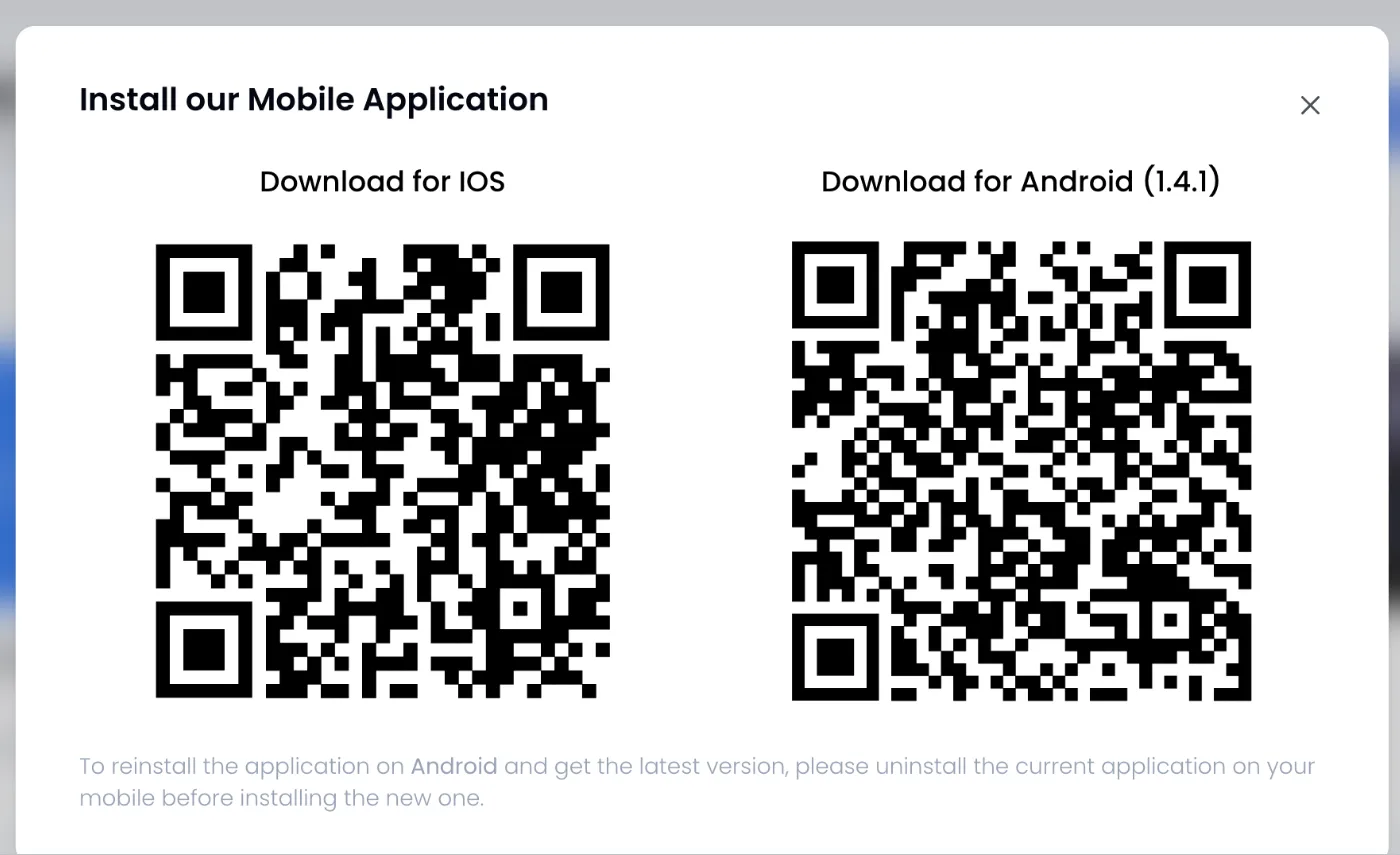
Section titled “Download the app”From the dashboard, open your account menu in the top right corner, then click Mobile Scan App. The “Install our Mobile Application” window shows two QR codes: Download for IOS and Download for Android. Scan the one that matches your phone with its camera.
On iPhone and iPad
Section titled “On iPhone and iPad”The iOS QR code opens the SweeScan page on the App Store: apps.apple.com/us/app/sweescan/id6523413936. Install the app like any other.
On Android
Section titled “On Android”SweeScan is not on Google Play. The Android QR code directly downloads the app’s installation file (an .apk file).
-
Scan the Android QR code and open the link: the file downloads.
-
Open the downloaded file. Android asks you to allow installing apps from this source (your browser or file manager): allow it.
-
Install the app.
To install a new version on Android, first uninstall the current app, then install the new one, as the dashboard window says.
Sign in
Section titled “Sign in”-
Open SweeScan. The sign-in screen shows “SweeScan” and “Login to take advantage of SweeScan and its benefits.”.
-
Enter the email and password of your Sweescape account, the same as for the dashboard. A team member uses their own account: see Get your team scanning.
-
Tap Log in.
| Message | Cause |
|---|---|
| “Account does not exist, please create an account!” | No Sweescape account uses this email. |
| “Please confirm your account by email or contact the support!” | The account has not been activated with the link received by email at sign-up. |
| “An error occurred, please retry later!” | Often a wrong password: check it. Otherwise, check the internet connection. |
The sign-in stays valid for 24 hours. After that, SweeScan returns to the sign-in screen at the next action. Sign in on the day itself, shortly before doors open.
Choose the event
Section titled “Choose the event”After signing in, the home screen shows “Welcome,” followed by your first name, a “Search an event…” search field and the list of your events: those of your account and those where you are a collaborator.
Each event shows its image, name, start date and time, number of attendees and an Ongoing tag (in progress or upcoming) or Ended tag (end date passed). An Ended event can still be scanned.
- The search field filters events by name. It does not search attendees.
- Pull the list down to refresh it, for example if an event was just created or shared with you.
- Tap an event to start checking. For a ticketed event, SweeScan first asks which tickets to check: see Scan tickets. For an imported event, the camera opens directly.
Allow the camera
Section titled “Allow the camera”On the first scan, SweeScan shows “Camera Access Required”. Tap Allow Camera, then accept the phone’s prompt. If you denied access, enable the camera for SweeScan in the phone’s settings, then reopen the app.
Sign out
Section titled “Sign out”On the home screen, tap the red icon in the top right corner, then confirm with Log out.